
Google Reverse Image Search: Computer & iPhone
Have you ever gone vintage shopping and bought something that you were unfamiliar with? You didn’t know exactly what it was or what it was worth? Google Reverse Image Search is just the free tool you need to help you identify and/or value your antique treasures.
You can use Google Reverse Image Search (GRIS) in a few different ways, all of which I cover in the articles. GRIS will find matches on the following:
- Your own images (photos in your computer’s photo gallery)
- Real life objects (e.g., an item you see while out shopping in Goodwill)
- Other people’s images on the internet
You’ll find directions in two ways (1) Written directions with images and (2) Written directions alone. Some people do better with pictures, others just want the simple, concise written version–use the table of contents below to pick!

What is Google Reverse Image Search
Google Reverse Image Search is a FREE service offered by Google. You upload a photo and Google searches the internet looking for images that match yours. Pretty cool right?
How Google Reverse Image Search Helps Your Vintage & Antique Business
How many times have you come across a cool looking item while shopping out in the wild that you didn’t know (A) what it was exactly or (B) what it was worth?
After taking a photo of it, you can upload it to Google Images. It will give you examples of items exactly like (or similar) to yours.
NOTE: You can also use the tool to search objects in real life. I explain how to do this in last section of this article down below.
From the images that Google serves you, you’ll invariably be able to figure out the name of the item you’re searching and pick up some great descriptive words to use when selling it.
When searching for vintage and antique items, listings from Etsy, eBay, or other online stores will show up that will help you determine the value of your piece.
How to Use Google Reverse Image Search On YOUR PHOTO
Before we get started, I want to mention that you shouldn’t get overwhelmed by these instructions(!). It is SUPER EASY to use Google Reverse Image Search!!
One of the reasons there are so many components to
On a Computer (Text + Image Directions)
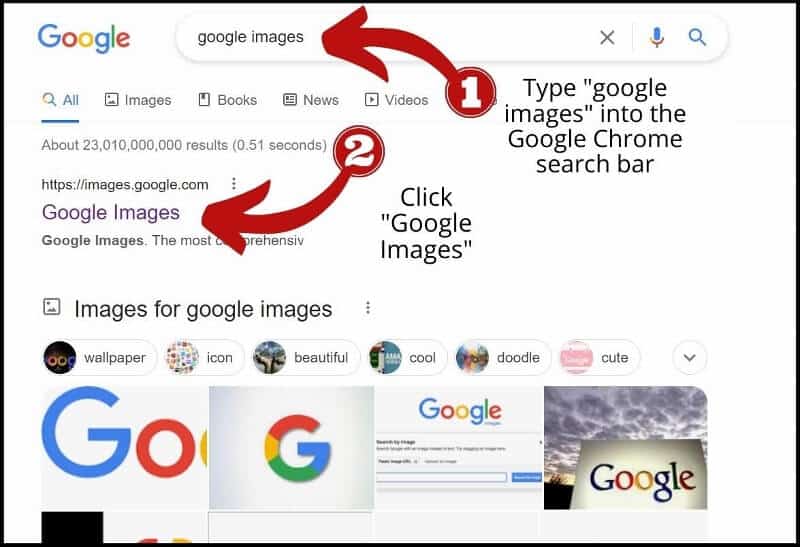
- Type Google Images into the Google Chrome search bar and hit Enter. (Google Image works automatically in Chrome. To use in other browsers, download the app.)
- Click on the link to Google Images.

3. When the Google Images search bar appears click on the camera icon.

4. Click on upload a file.
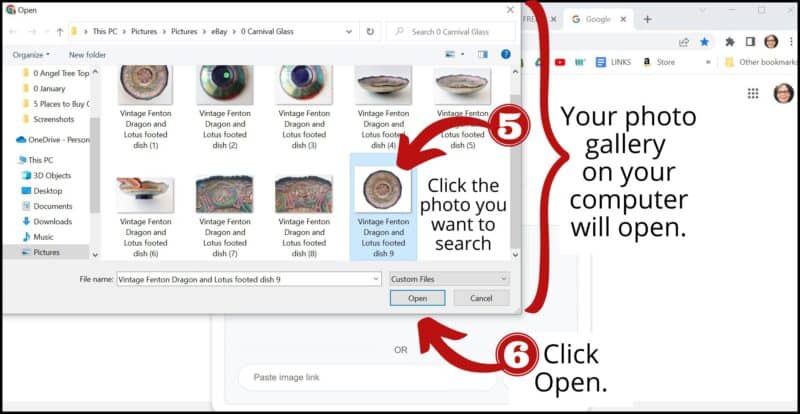
5. When your photo gallery (where you store your photos on your computer) opens, click on the photo you want to search.
6. Click Open.

7. If necessary, adjust the focal area of your photograph by dragging the white corners with your mouse.
8. Check out the matches on the right that Google Images served you. Use the descriptions and prices to help you evaluate your item.
On a Computer (Text Only Directions)
- Type Google Images into the Google Chrome search bar and hit Enter.
- Click on the link to Google Images.
- When the Google Images search bar appears, click on the camera icon.
- Click upload a file.
- Click on the photo you want to search.
- Click Open.
- If necessary, adjust the focal area of your photograph by dragging the white corners with your mouse.
- Check out the matches on the right that Google Images served you.
On an iPhone (Text + Image Directions)
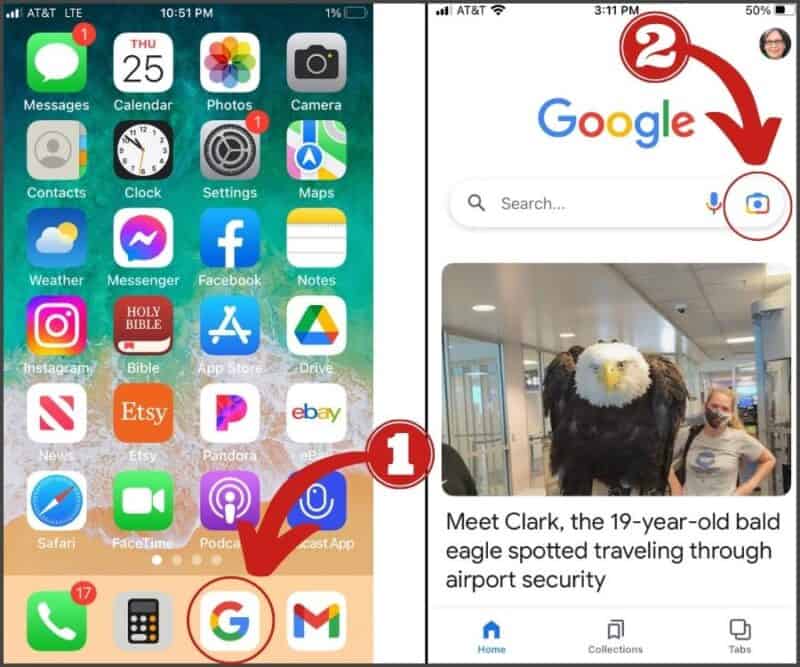
- Click on the Google Chrome icon on your iPhone home page. (Google Images works automatically on Google Chrome.)
- Click on the camera icon in the search bar.

3. The Google Lens screen opens and you’ll want to scroll down to your camera’s photo gallery.
4. Click on the photo in your gallery that you want to image search.
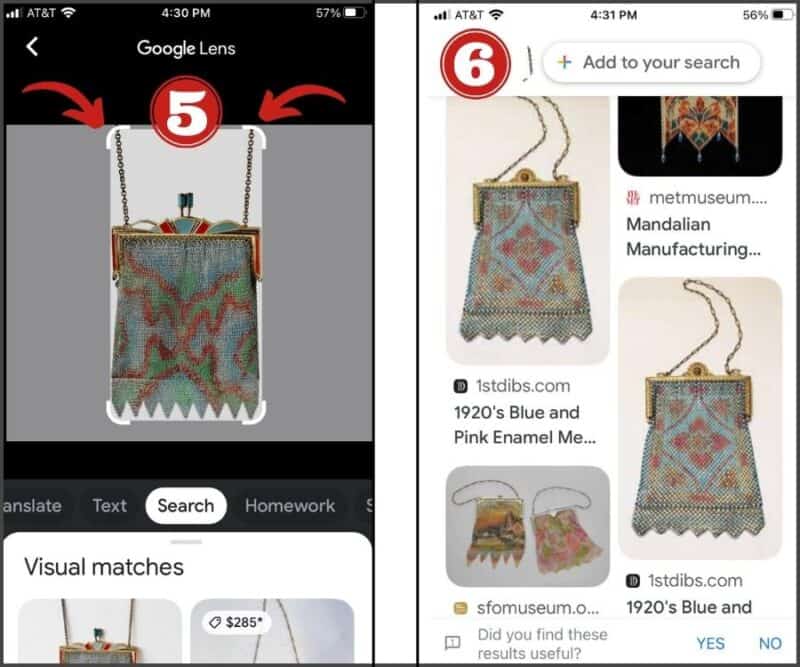
5. If needed, enlarge the area around the object that you want Google to search by moving the white corners with your mouse.
6. Browse the images offered to you by Google Images. Use the descriptions and prices to help you evaluate your item.
On an iPhone (Text Only Directions)
- Click on the Google Chrome icon on your iPhone home page. (Google Images only works on Google Chrome, which is easily downloaded for free from the App Store.)
- Click on the camera icon in the search bar.
The Google Lens screen opens; scroll down to your photos.
Click on the photo in your gallery that you want to image search.
- If needed, enlarge the area around the object that you want Google to search by moving the white corners with your mouse.
Browse the images offered to you by Google Images.
How to Use Google Image to Search A REAL LIFE ITEM [Using an iPhone]
Let’s say you’re out in the wild shopping at a thrift store and you want to find out what a certain item is or what its value might be.
You can use GRIS right there in the store to look for similar items. Here’s how you do it:
Real Objects On an iPhone (Image & Text Directions)
- Click on the Google Chrome icon on your iPhone home page. (Google Images works automatically on Google Chrome.)
- Click on the camera icon in the Google search bar.
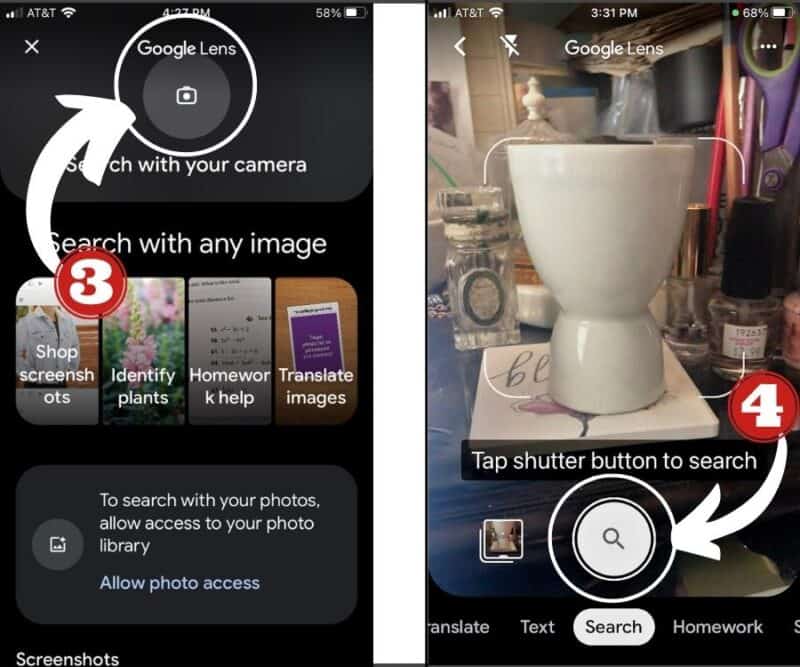
3. The Google Lens screen opens; click on the camera icon under the words “Google Lens.”
4. Focus on the item you want to search; click the white circle with the magnifying lens in it.

5. If needed, enlarge the area around the object that you want Google to search by moving the white corners with your mouse.
6. Browse the images offered to you by Google Images by swiping up on the small gray line under the word “Search.”Real Objects On an iPhone (Text Only Directions)
- Click on the Google Chrome icon on your iPhone home page.
- Click on the camera icon in the Google search bar.
The Google Lens screen opens; click on the camera icon under the words “Google Lens.”
Focus on the item you want to search; click the white circle with the magnifying lens in it.
- If needed, enlarge the area around the object that you want Google to search by moving the white corners with your mouse.
Browse the images offered to you by Google Images by swiping up on the small gray line.
How to Use Google Image to Search A PHOTO ON THE INTERNET
Let’s suppose you’re browsing the internet and come across a photo of an object you find intriguing. You can also use GRIS to find matches for it!
A. On a Computer
Just right click on the photo/item and click “Search image with Google Lens.” A series of photos matching the photo will appear on your right. Scroll down to view them all.
B. On an iPhone
Hold your finger down on the image you want to search. A screen will open. Click “Search inside image.”
Down below you’ll see as small gray bar on a white background–swipe up to see images that match yours.
Did that answer all your questions about how to use Google Reverse Image Search?? I certainly hope so! But if not, please leave your question(s) in the comments below and I’ll try to answer them.
Thanks for stopping by–
If you enjoyed this post, subscribe today
and get a FREE copy of my eBook:

Bye for now,

I’d love it if you’d pin me for later!


Is this different than just using Google lens? I have that downloaded onto my Android phone
No Diane–it’s the same thing. If you’re not using Google Chrome, then you need to download the app 🙂
dear adirondack girl,
i just tried the reverse image search you wrote about and i have an android phone. as soon as i took the picture examples appeared to identify the object. what an amazing tool you wrote about.
i am really a beginner in trying to price items i have because i love them or have inherited them. now i am trying to other good homes for some thru my first antique booth. i have some of your ideas on a notecard on my desk.
i am continually appreciative of the information you so generously share with us.
thank you.
Yay! I’m so glad you were able to make it work for you Linda 🙂 Wishing you great success with your antique booth!!
Great tutorial Diana. I have been using this tool for about a year or more and it’s probably the best identifier out there. You can do the same thing on eBay and Replacements, too. They have a camera icon to search, too. I would, however, just call it an image search, it doesn’t seem to reverse the image does it? I’m probably wrong!